
Description
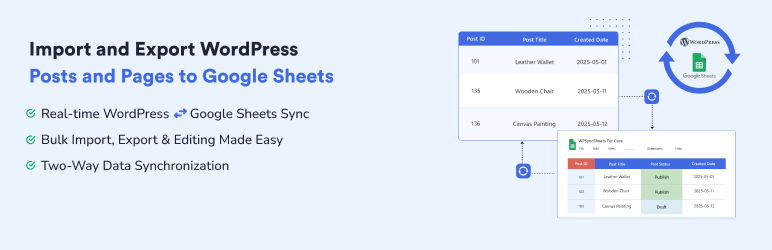
WPSyncSheets For Core is the fastest and most reliable way to import and export WordPress posts and pages in bulk. Save hours of manual work by managing large datasets effortlessly with a powerful and intuitive interface. Built with a developer-friendly architecture, it ensures clean data handling, optimized performance, and compatibility with complex WordPress environments.
If you are looking for a powerful Import Export Plugin for WordPress Posts and Pages, this plugin is the perfect choice. It allows you to easily import and export posts and pages in bulk while maintaining structured and reliable data handling for smooth migrations and content management.
Sample Sheets | Docs | Support | Pro
WPSyncSheets For Core Features
-
WordPress Import Export Plugin – Export Posts, Import Pages & Bulk Data
Export posts and import pages using a powerful WordPress import export plugin. Perfect for WordPress migration, CSV import, bulk export, and content updates. WPSyncSheets For Core helps you process large amounts of data quickly while maintaining structured and accurate content across your website. -
Backup WordPress Posts & Pages Easily
Securely back up your WordPress posts and pages in just a few clicks with a fast and reliable export process. This solution helps you protect your website content, prevent data loss, and simplify migrations or restores with structured and accurate backups. WPSyncSheets For Core makes it easy to handle bulk data, ensuring your content is always safe, accessible, and ready to restore whenever needed. -
Export WordPress Posts to Excel & CSV
Export your WordPress posts and pages to Excel or CSV format quickly and accurately with a streamlined bulk export process. This solution helps you manage large datasets, analyze content, and perform seamless migrations with structured and reliable data output. WPSyncSheets For Core ensures fast performance and precise formatting, making it easy to handle and reuse your WordPress data anytime. -
Track & Analyze WordPress Data in Google Sheets
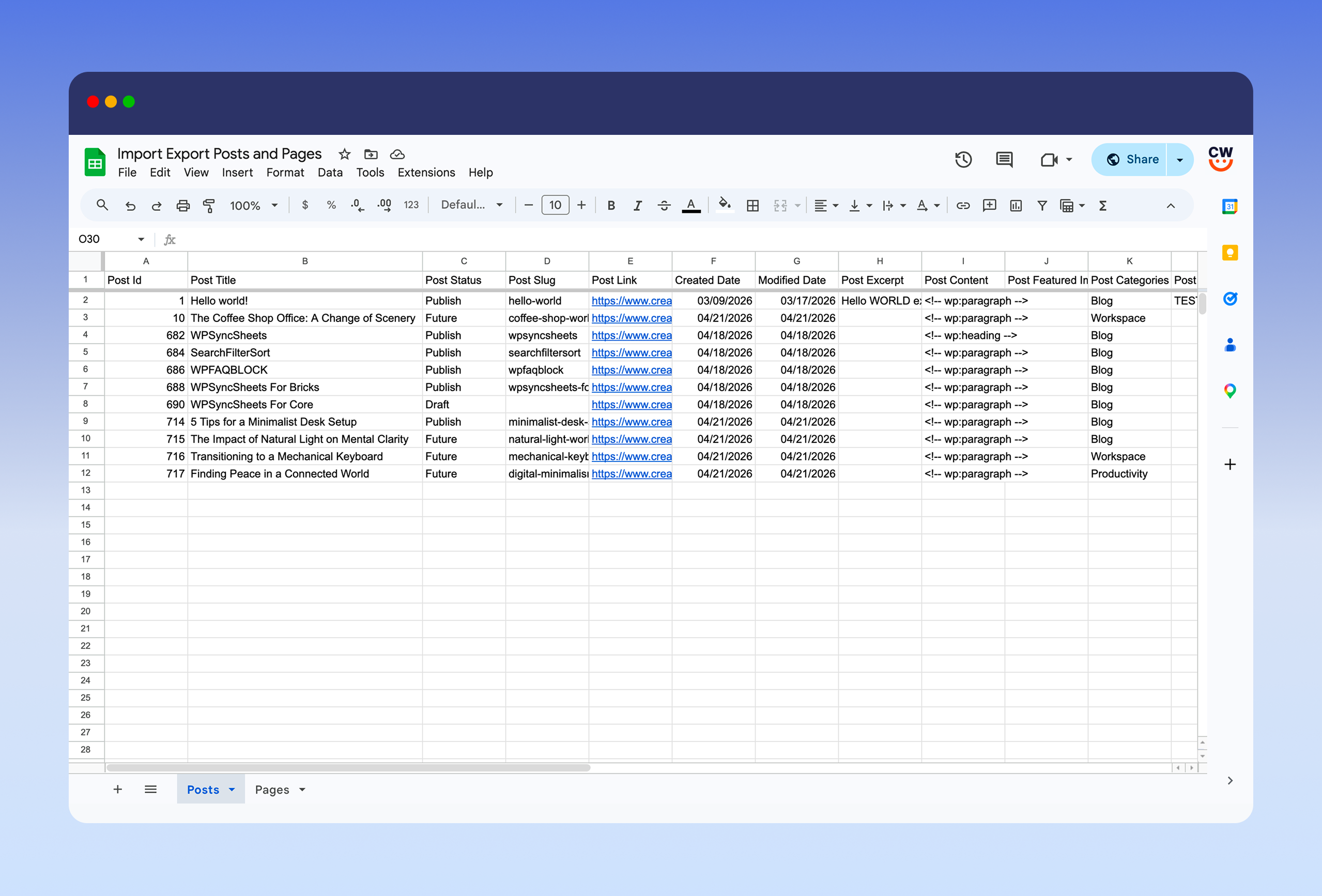
Track, analyze, and manage your WordPress data using Google Sheets with a streamlined and AI-ready workflow. Easily export posts and pages to organize, monitor performance, and gain actionable insights from your content. WPSyncSheets enables fast, structured data handling, helping you make smarter decisions with real-time visibility and scalable data management.
🔒 Upgrade to Pro Features
✅ All the features in the free plugin (data export, bulk export, etc.)
✅ Import Users from Google Sheets to WordPress
✅ Enable, disable, or custom-create sheet headers
✅ Schedule automatic imports of data from Google Sheets
✅ Schedule automatic export from WordPress to Google Sheets
✅ Export data from WordPress to Google Sheets within a date range
You can check out the user guide to easily set up the plugin or watch the below video on How to Export WordPress Posts & Pages
Related Import-Export Google Sheets Plugins
WPSyncSheets connects WordPress and WooCommerce platforms with Google Sheets. Our mission is to help businesses automate data transfer, simplify operations, and reduce repetitive tasks through real-time, two-way data synchronization.
🔸 WPSyncSheets For WooCommerce: Import and export WooCommerce orders, products, customers & coupons.
🔸 WPSyncSheets For Gravity Forms: Send Gravity Forms submissions to Google Sheets in real-time.
🔸 WPSyncSheets For Contact Form 7: Send your Contact Form 7 data directly to your Google Sheets spreadsheet and save to database.
🔸 WPSyncSheets For Elementor: Map & Sync Elementor Form Entries to Google Sheets in real time.
🔸 WPSyncSheets For Document Library Pro: Sync Document Library Pro entries with Google Sheets.
🔸 WPSyncSheets For WPForms: Map & Sync WPForms entries to Google Sheets.
🔸 WPSyncSheets For Ninja Forms: Automatically sync Ninja Forms entries to Google Sheets.
🔸 WPSyncSheets For Fluent Forms: Sync Fluent Forms entries to Google Sheets in real time.
🔸 WPSyncSheets For Formidable Forms: Automatically map and sync Formidable Forms entries to Google Sheets.
External Services
This plugin connects to the following external services to provide its core functionality:
1. Google APIs (Sheets, Drive & OAuth 2.0)
This plugin uses the Google Sheets API and Google Drive API to read and write data between your WordPress site and Google Spreadsheets. It also uses Google OAuth 2.0 to authenticate the user’s Google account.
What data is sent: With Manual Setup, your own Google OAuth 2.0 credentials (Client ID, Client Secret, and authorization code) are sent only to Google’s servers to obtain an access token. With One-Click “Connect with Google”, the authorization is handled through the WPSyncSheets OAuth relay described below. In both modes, the plugin reads and writes post/page data (e.g., post title, content, status, date) directly to and from the user’s designated Google Spreadsheet using the Google APIs.
When it is sent: Data is sent when: (a) the user connects their Google account via OAuth, (b) new or updated posts/pages are exported to Google Sheets, or (c) content is imported from Google Sheets to WordPress.
- Google APIs Terms of Service: https://developers.google.com/terms
- Google Privacy Policy: https://policies.google.com/privacy
2. WPSyncSheets OAuth Relay (One-Click Connection)
The One-Click “Connect with Google” option uses the WPSyncSheets OAuth relay at https://api.wpsyncsheets.com/server-relay/oauth.php and https://api.wpsyncsheets.com/server-relay/callback.php, so you do not need to create your own Google Cloud credentials. This service is not used with Manual Setup.
What data is sent: When you connect, the plugin sends your site URL, home URL, plugin version and a randomly generated installation ID. During authorization and when access tokens are refreshed, the relay receives the Google authorization code and the refresh/access tokens so it can obtain access tokens from Google for your site. When you disconnect, the plugin sends the installation ID so the connection can be removed.
When it is sent: Only when you click “Connect with Google”, when an access token for a One-Click connection needs to be refreshed, and when you disconnect a One-Click connection.
- WPSyncSheets Privacy Policy: https://www.wpsyncsheets.com/privacy-policy/
- WPSyncSheets Terms of Service: https://www.wpsyncsheets.com/terms-and-conditions/
3. WPSyncSheets Feedback Service
When a user deactivates the plugin, an optional feedback form is shown. If the user chooses to submit feedback and gives consent, the plugin sends the following data to our feedback server at https://feedback.wpsyncsheets.com:
What data is sent: Plugin name, plugin version, plugin slug and type, deactivation reason (selected from a list), optional free-text message, the site’s admin email address, and the site URL.
When it is sent: Only when the user ticks the consent checkbox and clicks “Submit and Deactivate”. No data is sent when the user clicks “Skip and Deactivate” or dismisses the popup.
- WPSyncSheets Privacy Policy: https://www.wpsyncsheets.com/privacy-policy/
- WPSyncSheets Terms of Service: https://www.wpsyncsheets.com/terms-and-conditions/
Source Code
The plugin ships with readable JavaScript and CSS source in:
assets/js/assets/css/
Screenshots


Installation
- Upload the entire
import-export-posts-and-pagesfolder to the/wp-content/plugins/directory. - Activate the plugin through the Plugins screen (Plugins > Installed Plugins).
Go to WPSyncSheets Lite > For Core in your WordPress admin.
For basic usage, have a look at the plugin documentation.
FAQ
-
Why are my posts or pages not syncing to Google Sheets or just spinning indefinitely?
-
This usually happens when:
- Your Google authentication token needs reauthorization. Disconnect and reconnect your Google account on the API Integration tab.
- Google Sheets and Drive APIs are not enabled in your Google Cloud project. Ensure both APIs are enabled in your Google Cloud Console.
-
Can I freeze the sheet header row?
-
Yes. The plugin includes an option to freeze or unfreeze the header row in Google Sheets.
-
Can I view, clear, or download the connected Google Sheet?
-
Yes. You can access your linked Google Sheet from the plugin settings with options to view, clear, or download it.
-
What should I do if I see a “This app isn’t verified” warning from Google?
-
If you created the Google API credentials yourself, click “Advanced” and then “Go to project” to continue. It’s safe if you’re the app owner.
-
Why is there a “range exceeds grid limits” error in Sheets?
-
This occurs when the sheet reaches its maximum row or column limit. Simply increase the number of rows in your Google Sheet to fix this.
-
What happens to my data when I delete the plugin?
-
Deactivating the plugin keeps everything. Deleting it from the Plugins screen removes the plugin’s settings, Google connection details (credentials and tokens), Setup Wizard state and cached data, and revokes the Google connection. Your posts, pages and Google Spreadsheet are not changed. If WPSyncSheets For Core (Pro) is installed, the settings and connection are kept so Pro can keep using them. To keep all data when deleting the plugin, add
define( 'IEPAP_CORE_KEEP_DATA_ON_UNINSTALL', true );to wp-config.php first.
Reviews
There are no reviews for this plugin.
Contributors & Developers
“Import Export Posts and Pages – WPSyncSheets For Core” is open source software. The following people have contributed to this plugin.
Contributors

Translate “Import Export Posts and Pages – WPSyncSheets For Core” into your language.
Interested in development?
Browse the code, check out the SVN repository, or subscribe to the development log by RSS.
Changelog
1.1.0 – Thursday, 17th September 2026
- Added: Interactive Setup Wizard for guided onboarding and initial setup.
- Added: One-Click direct connection to Google Sheets.
- Fixed: Security, compatibility and translation improvements.
1.0.1 – Saturday, 30th May 2026
- Tweak: Tested with WordPress 7.0.
1.0.0 – Tuesday, 21st April 2026
- Added: Initial release.