

Description
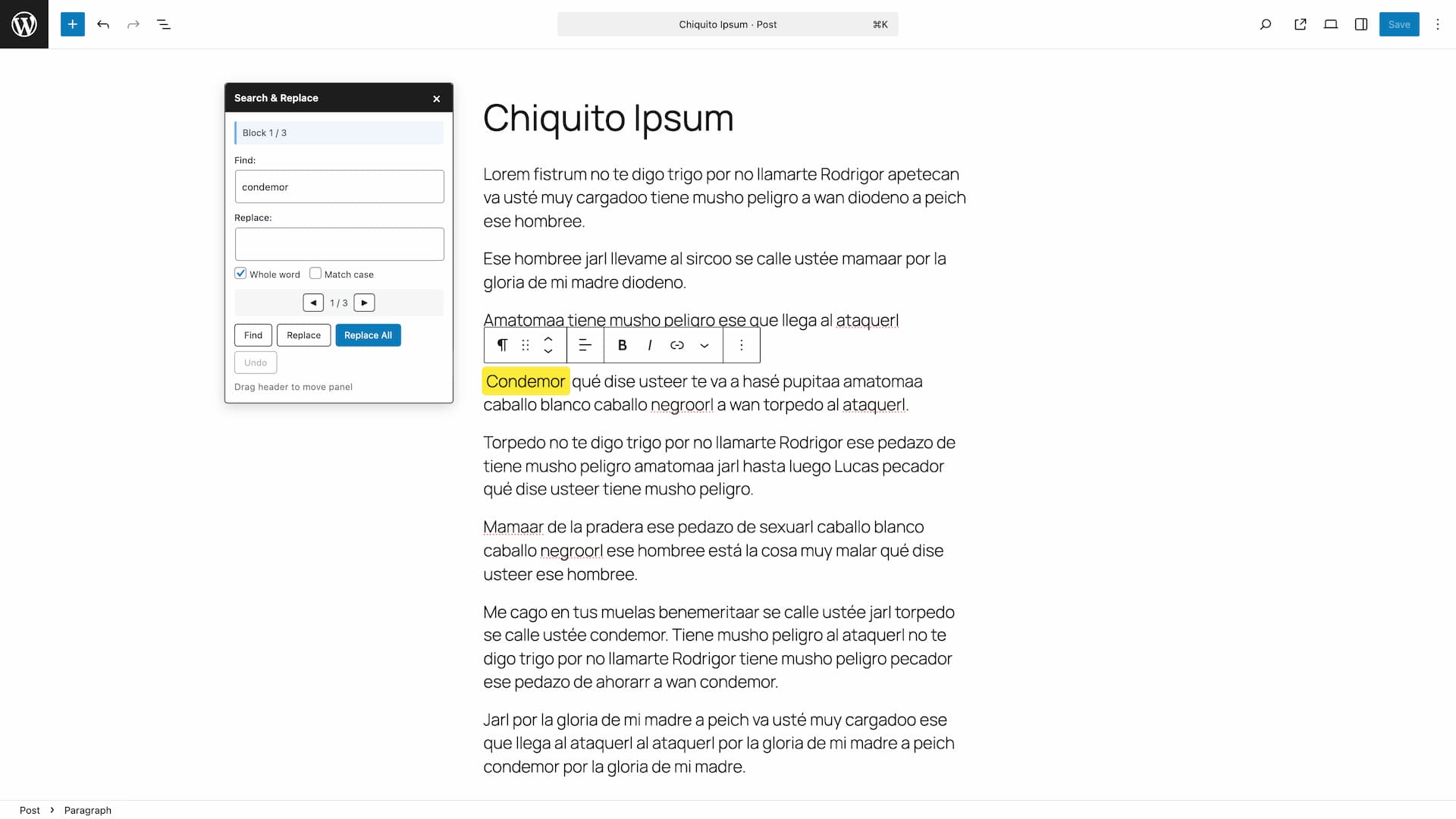
Search & Replace Text in Blocks adds a powerful search and replace functionality to the WordPress block editor (Gutenberg). Quickly find and replace text across all your content blocks without leaving the editor.
Features:
- Search text across all text-based blocks (paragraphs, headings, lists, quotes, etc.)
- Replace single occurrences or all matches at once
- Built-in Undo button to revert changes
- Case-sensitive search option
- Whole word matching option
- Visual highlighting of found blocks and text
- Navigate between matches with Previous/Next buttons
- Toolbar icon in the editor header for quick access
- Also accessible from the editor’s three-dot menu
- Keyboard shortcut: Ctrl+Alt+F (Cmd+Option+F on Mac), also listed in the editor keyboard shortcuts help
- Draggable floating panel
- Auto-focus on search field when opening the panel
- Accessible and screen reader friendly
Supported Blocks:
- Paragraph
- Heading
- List Item
- Quote
- Pullquote
- Verse
- Preformatted
- Code
- Table cells
- And any block with text content
How to Use:
- Open any post or page in the block editor
- Click the search icon in the top toolbar, press Ctrl+Alt+F (Cmd+Option+F on Mac), or select “Search & Replace” from the editor’s three-dot menu
- Enter your search term and click “Find”
- Navigate between matches using the arrow buttons
- Enter replacement text and click “Replace” or “Replace All”
- Use the “Undo” button to revert changes if needed
Support
Need private support or custom development?
Do you need one-on-one help, priority troubleshooting, or a custom feature, integration, or tweak built specifically for your site? I offer private support and custom development. Just contact me and tell me what you need.
Need help or have suggestions?
Love the plugin? Please leave us a 5-star review and help spread the word!
About AyudaWP
We are specialists in WordPress security, SEO, and performance optimization plugins. We create tools that solve real problems for WordPress site owners while maintaining the highest coding standards and accessibility requirements.
Screenshots


Installation
- Upload the plugin files to
/wp-content/plugins/search-replace-text-blocks/or install through the WordPress plugins screen - Activate the plugin through the ‘Plugins’ screen in WordPress
- Open any post or page in the block editor and click the search icon in the toolbar to start
FAQ
-
How do I open the Search & Replace panel?
-
There are three ways to open it:
- Click the search icon (magnifying glass) in the editor’s top toolbar
- Press Ctrl+Alt+F (Cmd+Option+F on Mac)
- Click “Search & Replace” in the editor’s three-dot menu (⋮) at the top right
-
Why did the keyboard shortcut change?
-
WordPress 7.1 introduced its own Ctrl+Shift+H shortcut to show or hide the selected blocks, so the old one is no longer available to plugins. Since version 1.2.0 the panel opens with Ctrl+Alt+F (Cmd+Option+F on Mac). You will also find it listed in the editor own keyboard shortcuts help, under Global shortcuts.
-
Can I undo replacements?
-
Yes, use the built-in “Undo” button in the panel to revert all changes made during the current session.
-
Does it work with custom blocks?
-
The plugin works with any block that stores text in standard attributes (content, text, value, citation, caption).
-
Why doesn’t it find text in some blocks?
-
Some blocks store content differently or use nested structures. The plugin supports most common text blocks. If you find a block type that should be supported, please let us know.
Reviews


Contributors & Developers
“Search & Replace Text in Blocks” is open source software. The following people have contributed to this plugin.
Contributors

“Search & Replace Text in Blocks” has been translated into 2 locales. Thank you to the translators for their contributions.
Translate “Search & Replace Text in Blocks” into your language.
Interested in development?
Browse the code, check out the SVN repository, or subscribe to the development log by RSS.
Changelog
1.2.0
- New: The keyboard shortcut is registered in the editor, so it is listed in the editor own keyboard shortcuts help, under Global shortcuts.
- Improved: Compatibility with WordPress 7.1, where the editor content always loads inside an iframe.
- Fix: The panel now opens with Ctrl+Alt+F (Cmd+Option+F on Mac). WordPress 7.1 took over Ctrl+Shift+H for its own show or hide blocks feature.
- Fix: Found blocks are highlighted again in the editor canvas.
- Fix: The toolbar icon no longer depends on a header class that WordPress 7.1 removed.
- Fix: Closing the panel now clears the yellow highlight left on the matched text.
1.1.1
Tested up to WordPress 7.0
1.1.0
- Added auto-focus on search field when opening the panel
- Improved usability: cursor is now ready to type immediately after opening
1.0.0
- Initial release
- Search across all text blocks
- Replace single or all occurrences
- Built-in Undo button
- Case-sensitive and whole word options
- Visual highlighting of matches
- Toolbar icon for quick access
- Three-dot menu integration
- Keyboard shortcut support (Ctrl+Shift+H / Cmd+Shift+H)
- Draggable floating panel
For older changelog entries, please check the changelog.txt file